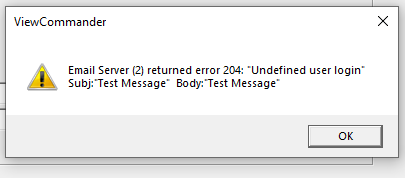
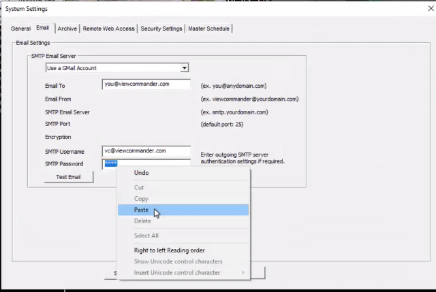
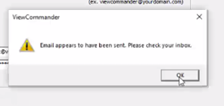
In the System Settings under the “Email” tab, choose “Use a Gmail Account”. Fill out the necessary information. Click here for more information. If you send a “Test Email” and you get the popup show below, you will need to log into your Gmail account to do additional setup.
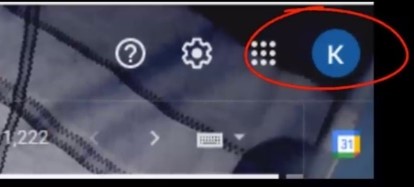
1. Log in to your Gmail account and click on the icon in the top right corner
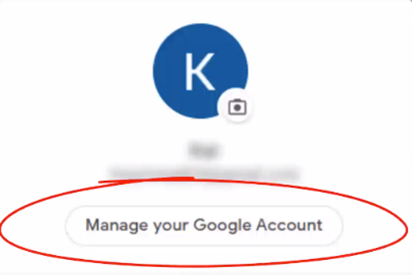
2. Click “Manage your Google Account”
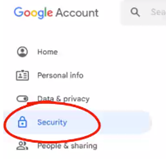
3. On the left side choose “Security”
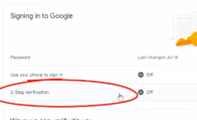
4. Select “2-Step Verification”
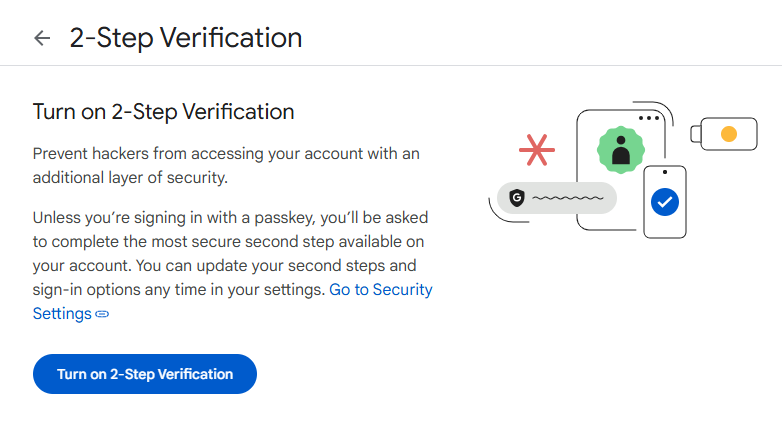
5. Click “Turn on 2-Step Verification”
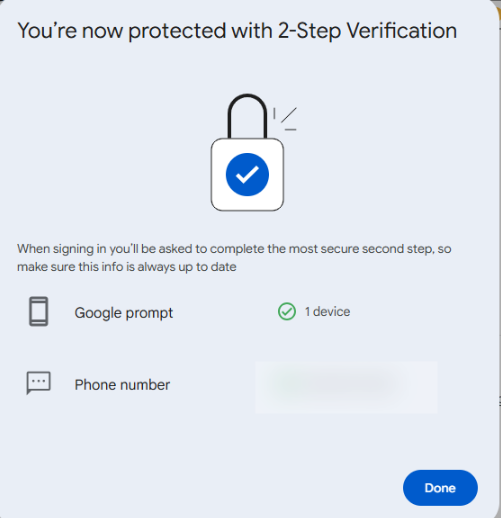
6. Click “Done”
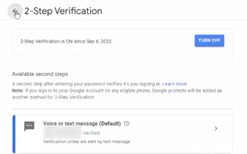
10. Click the back arrow at the top of the page
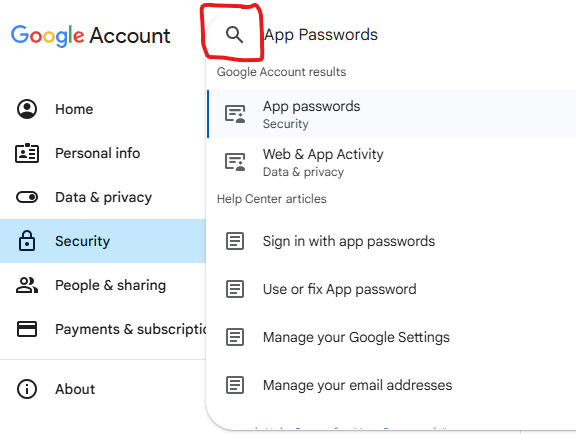
11. Search “App Passwords”
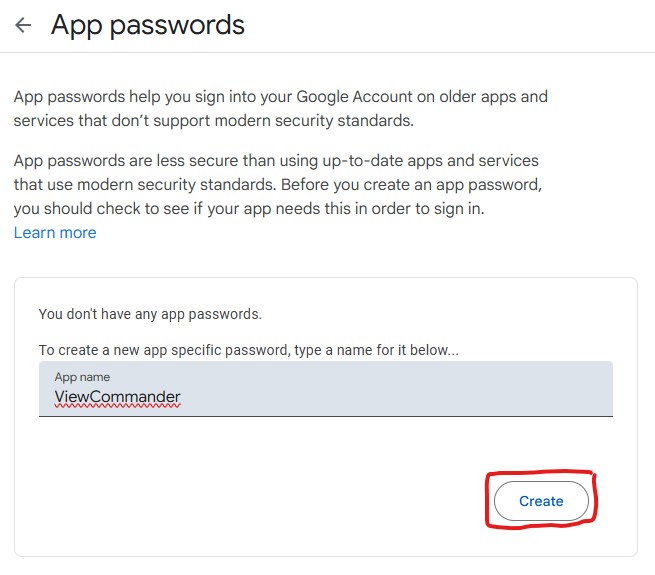
12. Enter “ViewCommander” then click “Create”
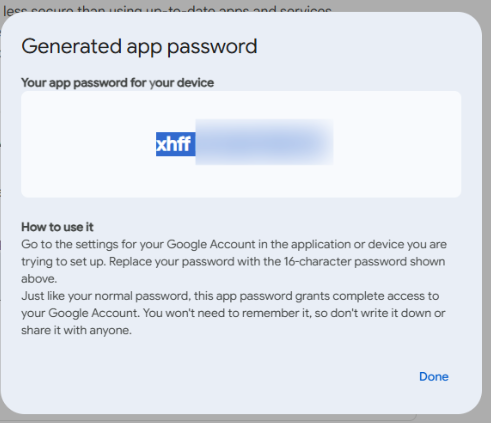
13. Highlight and copy the password that is generated
14. Back in ViewCommander Paste this password from Gmail into the “SMTP Password” field
15. Click on “Test Email” (It should popup indicating an email was successfully sent”
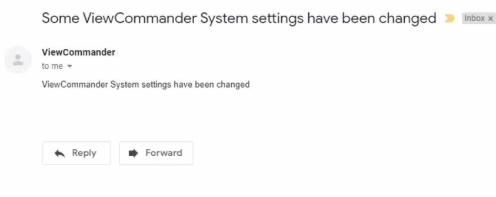
16. Check your inbox for the email from ViewCommander, if you do not see it check your spam folder as well